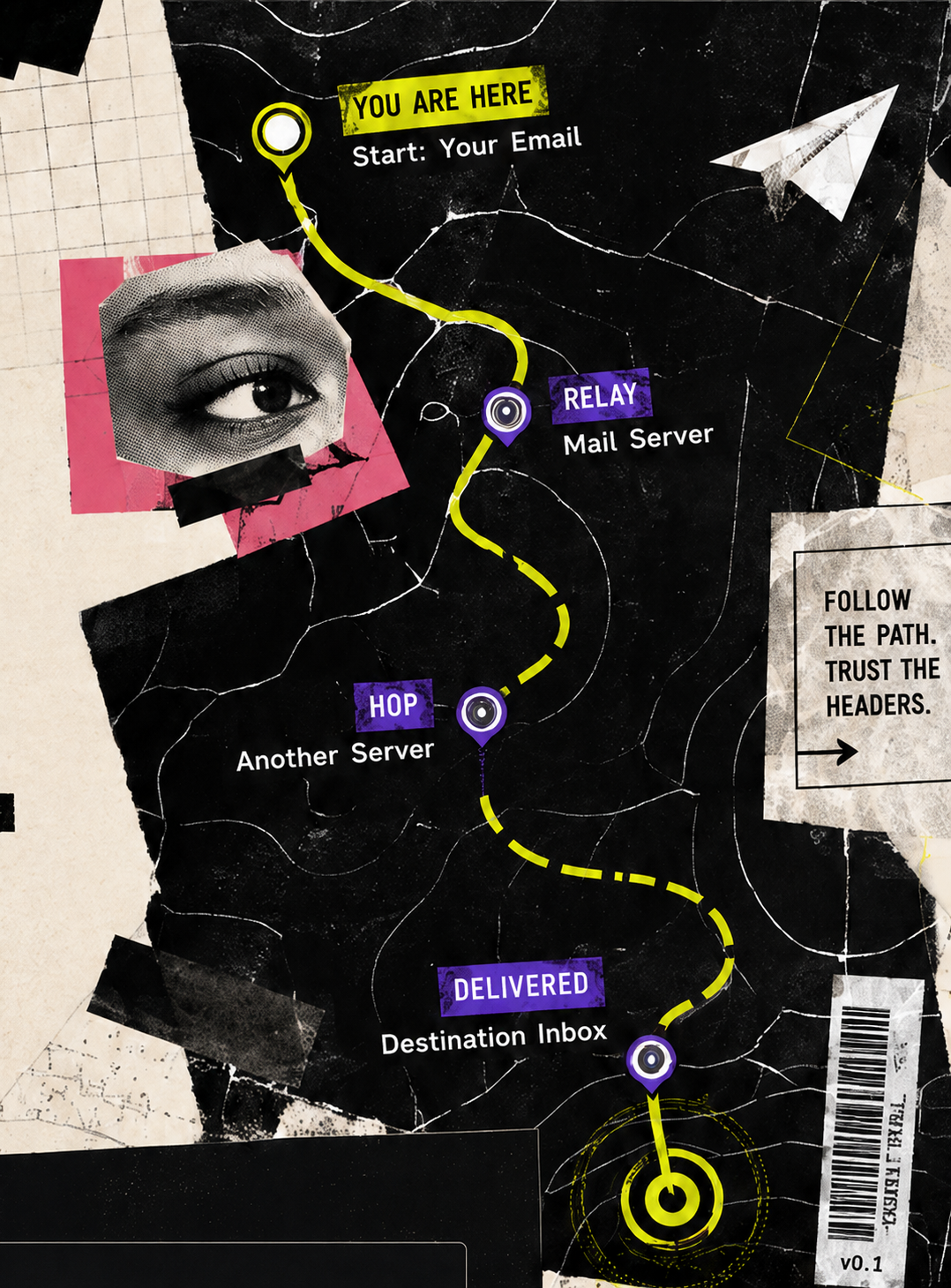
Mail apps show a tidied summary. Trail needs the original source, which opens as plain text you can select and copy.
While you are checking a message you do not trust, do not tap its links, do not reply, and do not call a number written inside it.
Proton Mail, the one app that does this directly
- Open the message in the Proton Mail app.
- Tap the three dot menu at the top right.
- Choose View headers, then copy the text.
That sheet shows the header lines only, which is exactly what Trail reads. If the menu item is missing, use the browser route below instead.
Every other mailbox: open it in the browser, not the app
- Open Safari or Chrome and go to your mailbox on the web. Gmail is at mail.google.com, Outlook at outlook.com, Yahoo at mail.yahoo.com.
- Switch on the desktop site. In Safari, tap aA and choose Request Desktop Website. In Chrome, turn on Desktop site.
- Open the message, then use the matching provider steps.
- Copy everything, come back here and paste it in.
GmailThree dot menu on the message itself, next to Reply, then Show original, then Copy to clipboard.
OutlookThree dot menu on the message, then View, then View message source or View message details.
YahooMore options above the message, then View Raw Message.
If none of that works
The Gmail app, Apple Mail on iPhone and iPad, and the Outlook mobile app do not expose raw source cleanly. If you are stuck, you can still act safely.
- Do not reply, tap anything, or use a phone number it gives you.
- Reach a company through a number or address you already had.
- Open the message on a computer later and come back.
Forwarding the message to yourself does not help. A normal forward creates new headers.
Where your mail app allows it, open the source without opening the message. Opening a suspicious message can load remote images, which tells the sender your address is live.
Gmail on the web
- Open the message.
- Click the three dot menu on the message itself, next to the reply arrow.
- Choose Show original.
- Click Copy to clipboard.
Outlook on the web, and new Outlook for Windows
- Open the message.
- Click the three dot menu on the message.
- Choose View, then View message source. Some versions label it View message details.
- Select everything and copy it.
Outlook for Windows, classic
- Double click the message.
- Go to File, then Properties.
- Copy everything in Internet headers.
Apple Mail on a Mac
- Select the message.
- View → Message → Raw Source, or Command + Option + U.
- Copy down to the first blank line.
Thunderbird
- Select the message.
- View → Message Source, or Ctrl+U.
- Copy the text.
Yahoo Mail
- Open the message.
- Click More options.
- Choose View Raw Message.
Proton Mail on the web
- Open the message.
- Click the three dot menu.
- Choose View headers.
A mail app that is not listed
- Look for source, original or raw.
- It usually sits in More, a three dot menu, or View.
- You want plain text starting with Received or Delivered-To.
Paste the whole thing. Trail stops reading at the first blank line, so the message body underneath is ignored. Steps last checked 10 August 2026.
Copy everything you see and paste it into Trail. We’ll handle the rest.